
Introduction
At DETL, we partnered with Class8 to build them a comprehensive driver-side mobile application for commercial truck operators. The app’s mission is simple but critical: give drivers real-time visibility into their trucks health so they can catch issues before it becomes an emergency.
One of our core features we at DETL had to build for Class8 was a diagnostics dashboard which is a system that visualizes dozens of metrics like oil temperature, battery voltage, coolant flow, injector performance and many more. For each metric, we needed to show not just the data, but also colour-coded severity thresholds that indicate when values safe (blue), concerning (orange) or critical (red).
The requirement seemed straight forward:
- Plot time-series data as trendlines
- Draw horizontal threshold lines showing severity boundaries
- Color the trendline dynamically — transitioning from safe to moderate to critical exactly where values cross those thresholds
- Handle both “high-is-bad” metrics (like oil temperature) and “low-is-bad” metrics (like fuel efficiency)
- Make it work smoothly on both iOS and Android
The Problem We Hit
Our first implementation looked promising in demos, but when we tested with real truck data, we discovered a critical bug: the horizontal threshold lines didn’t align with the actual data.
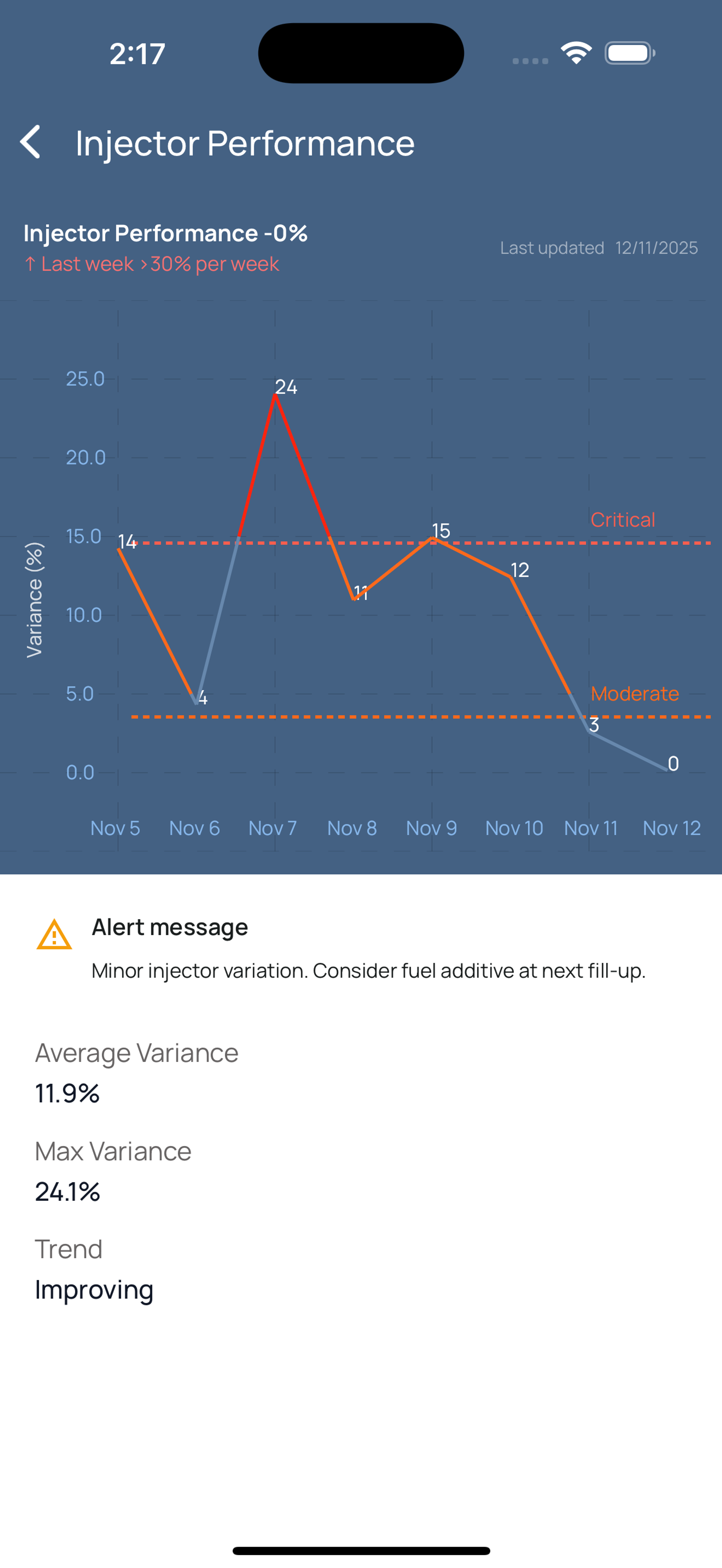
Look closely at the chart above. The “Moderate” threshold line (orange dashed line at the bottom) should align with the value 5.0 on the Y-axis — that’s where moderate severity begins for this metric. But it’s visibly offset, sitting somewhere around 3.5–4.0 instead. We had to manually adjust the “Critical” line position with a hard-coded number just to make it appear somewhat correct at the 15 mark, but this hack broke down as soon as different metrics with different value ranges loaded.
Here’s what was happening:
We’d manually calculate where threshold lines should appear based on the Y-axis min/max values
- But Victory Native’s internal scaling would adjust the chart domain to better fit the data
- Our pixel calculations didn’t match Victory’s final coordinates, causing the threshold guides to drift 10–20 pixels off from where they should be
- Even worse, when the trendline crossed a threshold, the color change happened at the actual threshold value, but the visual guide was drawn somewhere else entirely
For a driver checking why their injector performance is flagged, seeing a data point at 4% in the “safe” (blue) zone when the moderate threshold appears to be at 3.5% destroys trust in the system. If the visual guides don’t match the actual severity logic, drivers start second-guessing the data, or worse, ignoring critical warnings entirely.
The Journey Ahead
This blog post walks through how we solved this problem by fundamentally rethinking our approach. Instead of treating thresholds as visual overlays, we started treating them as data points themselves. This architectural shift solved multiple problems at once: perfect threshold alignment, accurate domain scaling, and truthful colour transitions.
We’ll cover:
- The data structure challenges with bidirectional thresholds
- Our breakthrough “thresholds as data” technique
- How we split line segments at exact crossing points for pixel-perfect color transitions
- The Victory Native + React Native Skia hybrid architecture that made it all work
- Real-world examples from the deployed Class8 driver app
Whether you’re building diagnostic dashboards, financial charts, or any visualization where precise threshold rendering matters, the patterns we’ll share apply directly to your use case.
Understanding the Data Challenge
Before we could fix the alignment problem, we needed to understand why truck diagnostic thresholds are more complex than typical chart thresholds.
The Data Structure
Diagnostic data comes with a structure that reflects the real-world complexity of vehicle monitoring:
1type MetricData = {
2  // Other data...
3  series: { timestamp: string; value: number }[];
4  thresholds: {
5    severity: 'safe' | 'moderate' | 'critical';
6    lte?: number;  // less than or equal
7    lt?: number;   // less than
8    gt?: number;   // greater than
9    gte?: number;  // greater than or equal
10    message: string;
11  }[];
12};
Notice something unusual? Instead of simple threshold values like critical: 85, we're working with comparison operators: lte, lt, gt, gte. This is because truck diagnostics aren't one-directional.
The Bidirectional Threshold Problem
Some metrics are “high-is-bad” — the higher the value, the worse the situation:
- Oil Temperature: Safe below 230°F, critical above 250°F
- Coolant Temperature: Safe below 70°C, critical above 85°C
- Engine Stress Factor: Safe below 65%, critical above 80%
For these metrics, thresholds look like:
1{
2  thresholds: [
3    { severity: "safe", lt: 230 },
4    { severity: "moderate", gte: 230, lt: 250 },
5    { severity: "critical", gte: 250 }
6  ]
7}
8
But other metrics are “low-is-bad” — lower values indicate problems:
- Fuel Efficiency: Critical below 7 MPG, safe above 9 MPG
- Battery Voltage: Critical below 12.8V, safe above 13.5V
For these, the structure flips:
1{
2  thresholds: [
3    { severity: "critical", lte: 7 },
4    { severity: "moderate", gt: 7, lte: 9 },
5    { severity: "safe", gt: 9 }
6  ]
7}
And then there’s the Injector Performance metric from our problematic screenshot , it’s actually a variance measurement where values should stay close to zero. High variance in either direction is bad:
- Safe: -5% to 5%
- Moderate: -15% to -5% OR 5% to 15%
- Critical: below -15% OR above 15%
This complexity meant we couldn’t just draw lines at fixed Y-values and call it done. We needed a system that understood the direction of danger for each metric.
Our First (Failed) Approach
Initially, we tried to calculate threshold line positions manually:
1// ❌ The buggy approach that caused misalignment
2function drawThresholdLine(
3  thresholdValue: number,
4  yMin: number,
5  yMax: number,
6  chartHeight: number
7) {
8  const yRange = yMax - yMin;
9  const pixelPosition = chartHeight - ((thresholdValue - yMin) / yRange) * chartHeight;
10
11  // Draw line at pixelPosition
12  return <Line y={pixelPosition} />;
13}
14
This worked in simple cases, but failed when:
- Victory Native applied its own domain padding for visual balance
- The data range was small (e.g., battery voltage 13.8V-14.2V) and Victory would auto-scale
- Multiple thresholds needed to be visible, forcing Victory to expand the domain
The “moderate” line in the Injector Performance chart sitting at ~3.5 instead of 5.0 was a direct result of this mismatch between our pixel math and Victory’s actual scaling.
The Breakthrough: Treating Thresholds as Data
The solution came from a simple question: What if we stopped treating thresholds as visual overlays and started treating them as actual data points?
The Key Insight
Instead of drawing threshold lines based on calculated pixel positions, we inject thresholds directly into the dataset that Victory Native processes. This means:
- Victory scales the domain to include thresholds automatically — no more manual padding calculations
- We can extract the exact pixel coordinates Victory computed for each threshold
- The alignment bug disappears — threshold lines use Victory’s actual coordinate system, not our estimates
Implementation: Injecting Threshold Points
Here’s how we modify the time-series data:
1function aggregateTimeSeriesData(
2  series: TimeSeriesPoint[],
3  thresholds: Threshold[],
4  maxPoints: number = 8,
5) {
6  // Step 1: Sort and downsample the actual data to 8 points
7  const sortedSeries = [...series].sort(
8    (a, b) => new Date(a.timestamp).getTime() - new Date(b.timestamp).getTime()
9  );
10
11  let aggregatedData: DataPoint[];
12
13  if (sortedSeries.length <= maxPoints) {
14    // Use all points if we have 8 or fewer
15    aggregatedData = sortedSeries.map((point, i) => ({
16      index: i,
17      value: point.value,
18      label: `#${i + 1}`,
19      displayDate: formatDate(point.timestamp),
20    }));
21  } else {
22    // Downsample to exactly 8 evenly-spaced points
23    aggregatedData = [];
24    const step = (sortedSeries.length - 1) / (maxPoints - 1);
25
26    for (let i = 0; i < maxPoints; i++) {
27      const pointIndex = Math.round(i * step);
28      const point = sortedSeries[pointIndex];
29      aggregatedData.push({
30        index: i,
31        value: point.value,
32        label: `#${i + 1}`,
33        displayDate: formatDate(point.timestamp),
34      });
35    }
36  }
37
38  // Step 2: Extract all threshold boundary values
39  const thresholdValues = thresholds.flatMap(t =>
40    [t.gt, t.gte, t.lt, t.lte].filter((v): v is number => v != null)
41  );
42  const uniqueThresholds = [...new Set(thresholdValues)];
43
44  // Step 3: INJECT thresholds as synthetic data points
45  uniqueThresholds.forEach((thresholdValue, idx) => {
46    const threshold = thresholds.find(t =>
47      t.gt === thresholdValue || t.gte === thresholdValue ||
48      t.lt === thresholdValue || t.lte === thresholdValue
49    );
50
51    aggregatedData.push({
52      index: aggregatedData.length + idx,
53      value: thresholdValue,
54      label: 'threshold', // Special marker to identify these later
55      displayDate: '',
56      severity: threshold?.severity,
57    });
58  });
59
60  // Step 4: Compute smart Y-axis bounds including thresholds
61  const dataValues = aggregatedData
62    .filter(p => p.label !== 'threshold')
63    .map(p => p.value);
64  const allValues = [...dataValues, ...thresholdValues];
65
66  const min = Math.min(...allValues);
67  const max = Math.max(...allValues);
68  const padding = (max - min) * 0.1; // 10% padding for visual breathing room
69
70  return {
71    data: aggregatedData,
72    smartYMin: min - padding,
73    smartYMax: max + padding,
74  };
75}
What This Achieves
Before (manual calculation):
1// We guess where the threshold should be
2const y = estimatePixelPosition(thresholdValue, yMin, yMax);
3// Victory uses different coordinates → misalignment
4
After (threshold as data):
1// Victory computes the position as part of its normal scaling
2const thresholdPoint = victoryPoints.find(p => p.label === 'threshold');
3const y = thresholdPoint.y; // Exact coordinate, guaranteed to align
The injected threshold points look like this in the dataset:
1[
2  { index: 0, value: 14, label: '#1', displayDate: 'Nov 5' },
3  { index: 1, value: 4, label: '#2', displayDate: 'Nov 6' },
4  { index: 2, value: 24, label: '#3', displayDate: 'Nov 7' },
5  // ... more data points ...
6  { index: 8, value: 5, label: 'threshold', displayDate: '', severity: 'moderate' },
7  { index: 9, value: 15, label: 'threshold', displayDate: '', severity: 'critical' },
8]
Victory treats these threshold markers as regular data points when computing the domain, but we filter them out when drawing the actual trendline. This gives us the best of both worlds: accurate scaling and precise positioning.
In the next section, we’ll see how to extract these coordinates and draw perfectly aligned threshold guides.
Rendering Perfect Threshold Lines with Skia
Now that thresholds are part of our dataset, we can extract Victory’s computed coordinates and use React Native Skia to draw pixel-perfect guides.
The Victory + Skia Architecture
We use a hybrid approach:
- Victory Native handles all the math: domain scaling, coordinate transformations, data-to-pixel mapping
- React Native Skia handles custom rendering: threshold lines, labels, and typography
Here’s the component structure:
1import { CartesianChart, Line } from 'victory-native';
2import { Path, TextPath, Skia, useFont } from '@shopify/react-native-skia';
3
4export function MetricChart({
5  chartDataPoints,
6  thresholds,
7  yAxisMin,
8  yAxisMax,
9}) {
10  const font = useFont(require('./fonts/Manrope-Regular.ttf'), 12);
11
12  // Separate actual data from threshold markers
13  const dataPointsOnly = chartDataPoints.filter(p => p.label !== 'threshold');
14  const thresholdPointsOnly = chartDataPoints.filter(p => p.label === 'threshold');
15
16  return (
17    <CartesianChart
18      data={chartDataPoints} // Full dataset including thresholds
19      xKey="index"
20      yKeys={['value']}
21      domain={{
22        y: [yAxisMin, yAxisMax], // Smart bounds from our aggregation
23        x: [0, dataPointsOnly.length - 1],
24      }}
25      yAxis={[{
26        font,
27        labelColor: '#86B6EA',
28        formatYLabel: value => `${value.toFixed(1)}`,
29      }]}
30    >
31      {({ points, chartBounds }) => (
32        <>
33          {/* Render threshold guides here */}
34          {/* Render trendline here */}
35          {/* Render labels here */}
36        </>
37      )}
38    </CartesianChart>
39  );
40}
Extracting Victory’s Coordinates
The points object from Victory's render prop contains computed pixel coordinates for every data point—including our injected thresholds:
1{({ points, chartBounds }) => {
2  // points.value = array of all computed coordinates
3  // chartBounds = { left, right, top, bottom } of the chart area
4
5  return (
6    <>
7      {thresholdPointsOnly.map((threshold) => {
8        // Find Victory's computed position for this threshold
9        const victoryPoint = points.value.find(
10          p => Math.abs((Number(p.xValue) || 0) - threshold.index) < 0.01
11        );
12
13        if (!victoryPoint || victoryPoint.y == null) return null;
14
15        // victoryPoint.y is now the EXACT pixel coordinate
16        // No manual calculation, no misalignment
17      })}
18    </>
19  );
20}}
Drawing Threshold Lines with Skia
Now we can draw perfectly aligned dashed lines:
1const SEVERITY_COLORS = {
2  critical: '#FF240E',
3  moderate: '#FE691B',
4  safe: '#6788AD',
5};
6
7{thresholdPointsOnly.map((threshold) => {
8  const victoryPoint = points.value.find(
9    p => Math.abs((Number(p.xValue) || 0) - threshold.index) < 0.01
10  );
11
12  if (!victoryPoint || victoryPoint.y == null) return null;
13
14  const color = SEVERITY_COLORS[threshold.severity];
15
16  // Create dashed horizontal line path
17  const linePath = Skia.Path.Make();
18  linePath.moveTo(chartBounds.left + 80, victoryPoint.y);
19  linePath.lineTo(chartBounds.right, victoryPoint.y);
20  linePath.dash(4, 3, 0); // 4px dash, 3px gap
21
22  // Create path for the severity label
23  const labelPath = Skia.Path.Make();
24  const textOffsetY = -12; // Position text above the line
25  const textOffsetX = 20;
26  labelPath.moveTo(chartBounds.right - 120 + textOffsetX, victoryPoint.y + textOffsetY);
27  labelPath.lineTo(chartBounds.right - 20 + textOffsetX, victoryPoint.y + textOffsetY);
28
29  return (
30    <React.Fragment key={`threshold-${threshold.index}`}>
31      <Path
32        path={linePath}
33        color={color}
34        strokeWidth={2}
35        style="stroke"
36      />
37      <TextPath
38        path={labelPath}
39        text={threshold.severity}
40        color={color}
41        font={font}
42      />
43    </React.Fragment>
44  );
45})}
Why This Works
The critical difference from our buggy approach:
Before:
1// ❌ Manual pixel calculation
2const y = chartHeight - ((thresholdValue - yMin) / (yMax - yMin)) * chartHeight;
3// This NEVER matched Victory's actual scaling
After:
1// ✅ Use Victory's exact coordinate
2const victoryPoint = points.value.find(p => p.index === threshold.index);
3const y = victoryPoint.y;
4// This is ALWAYS correct because it's Victory's own calculation
Looking back at the Injector Performance chart, the “moderate” line was sitting at ~3.5 instead of 5.0 because our manual calculation didn’t account for Victory’s domain adjustments. Now, by reading victoryPoint.y directly, the line appears exactly where it should—at the 5.0 mark on the Y-axis.
The threshold guides are now mathematically guaranteed to align with the chart’s coordinate system, regardless of Victory’s internal scaling decisions.
Coloring the Trendline Based on Severity
With threshold lines perfectly aligned, we tackled the next challenge: making the trendline itself change color exactly where values cross severity boundaries.
The Goal
When a driver’s oil temperature rises from 225°F (safe/blue) to 255°F (critical/red), the line shouldn’t abruptly switch colors at discrete data points. Instead, it should transition smoothly at the exact 250°F threshold, even if that crossing happens between two measurements.
Determining Severity Direction
First, we need to normalize our threshold structure to handle both “high-is-bad” and “low-is-bad” metrics:
1type ThresholdConfig = {
2  critical: { min: number | null; max: number | null };
3  moderate: { min: number | null; max: number | null };
4  safe: { min: number | null; max: number | null };
5};
6
7function buildThresholdRanges(thresholds: Threshold[]): ThresholdConfig {
8  const config: ThresholdConfig = {
9    critical: { min: null, max: null },
10    moderate: { min: null, max: null },
11    safe: { min: null, max: null },
12  };
13
14  return thresholds.reduce((acc, t) => {
15    switch (t.severity) {
16      case 'critical':
17        acc.critical.max = t.lte ?? t.lt ?? acc.critical.max;
18        acc.critical.min = t.gt ?? t.gte ?? acc.critical.min;
19        break;
20      case 'moderate':
21        acc.moderate.min = t.gt ?? t.gte ?? acc.moderate.min;
22        acc.moderate.max = t.lte ?? t.lt ?? acc.moderate.max;
23        break;
24      case 'safe':
25        acc.safe.max = t.lte ?? t.lt ?? acc.safe.max;
26        acc.safe.min = t.gt ?? t.gte ?? acc.safe.min;
27        break;
28    }
29    return acc;
30  }, config);
31}
Now we can determine color based on direction:
1function getSegmentColor(value: number, ranges: ThresholdConfig) {
2  const { critical, moderate } = ranges;
3
4  const isLowBad = critical.max != null;  // Critical ≤ max → low is dangerous
5  const isHighBad = critical.min != null; // Critical ≥ min → high is dangerous
6
7  if (isLowBad) {
8    // Lower values are worse (e.g., fuel efficiency, battery voltage)
9    if (critical.max != null && value <= critical.max) {
10      return SEVERITY_COLORS.critical;
11    }
12    if (moderate.max != null && value <= moderate.max) {
13      return SEVERITY_COLORS.moderate;
14    }
15    return SEVERITY_COLORS.safe;
16  }
17
18  if (isHighBad) {
19    // Higher values are worse (e.g., oil temp, coolant temp)
20    if (critical.min != null && value >= critical.min) {
21      return SEVERITY_COLORS.critical;
22    }
23    if (moderate.min != null && value >= moderate.min) {
24      return SEVERITY_COLORS.moderate;
25    }
26    return SEVERITY_COLORS.safe;
27  }
28
29  return SEVERITY_COLORS.safe; // Fallback
30}
Detecting Threshold Crossings
When drawing a line segment between two points, we need to detect if it crosses any threshold boundaries:
1function findCrossings(v1: number, v2: number, boundaryValues: number[]) {
2  const crossings: { threshold: number; position: number }[] = [];
3
4  boundaryValues.forEach((threshold) => {
5    // Check if the segment crosses this threshold
6    if (
7      (v1 <= threshold && v2 > threshold) ||  // Crossing upward
8      (v1 > threshold && v2 <= threshold)     // Crossing downward
9    ) {
10      // Calculate interpolation factor (0 to 1) where crossing occurs
11      const position = (threshold - v1) / (v2 - v1);
12      crossings.push({ threshold, position });
13    }
14  });
15
16  // Sort by position so we draw segments left-to-right
17  return crossings.sort((a, b) => a.position - b.position);
18}
19
Example: If a value goes from 240°F to 260°F, and the critical threshold is 250°F:
v1 = 240,v2 = 260,threshold = 250position = (250 - 240) / (260 - 240) = 10 / 20 = 0.5- The crossing happens exactly halfway along the segment
Rendering Split Segments
Now we iterate through data points and split segments at crossings:
1{points.value.flatMap((_, index) => {
2  // Skip threshold markers when drawing the trendline
3  if (chartDataPoints[index]?.label === 'threshold') return [];
4
5  // Find the next real data point (skip any threshold markers)
6  const nextDataIndex = chartDataPoints.findIndex(
7    (p, i) => i > index && p.label !== 'threshold'
8  );
9  if (nextDataIndex === -1) return [];
10
11  const current = points.value[index];
12  const nextPoint = points.value[nextDataIndex];
13  const currentValue = chartDataPoints[index]?.value ?? 0;
14  const nextValue = chartDataPoints[nextDataIndex]?.value ?? 0;
15
16  // Collect all boundary values
17  const boundaryValues = Array.from(
18    new Set([
19      thresholds.safe.min,
20      thresholds.safe.max,
21      thresholds.moderate.min,
22      thresholds.moderate.max,
23      thresholds.critical.min,
24      thresholds.critical.max,
25    ].filter((v): v is number => v != null))
26  ).sort((a, b) => a - b);
27
28  const crossings = findCrossings(currentValue, nextValue, boundaryValues);
29
30  // No crossings → draw single colored segment
31  if (crossings.length === 0) {
32    return (
33      <Line
34        key={`line-segment-${index}`}
35        color={getSegmentColor(currentValue, thresholds)}
36        points={[current, nextPoint]}
37        strokeWidth={2}
38      />
39    );
40  }
41
42  // Multiple crossings → split into sub-segments
43  const segments = [];
44  let prevPosition = 0;
45  let prevValue = currentValue;
46
47  crossings.forEach((crossing, crossingIndex) => {
48    const { position } = crossing;
49
50    // Interpolate coordinates at the crossing point
51    const interpolatedX = current.x + (nextPoint.x - current.x) * position;
52    const interpolatedY = current.y + (nextPoint.y - current.y) * position;
53    const interpolatedValue = currentValue + (nextValue - currentValue) * position;
54
55    // Draw segment from previous position to this crossing
56    segments.push(
57      <Line
58        key={`line-segment-${index}-${crossingIndex}`}
59        color={getSegmentColor(prevValue, thresholds)}
60        points={[
61          prevPosition === 0
62            ? current
63            : {
64                x: current.x + (nextPoint.x - current.x) * prevPosition,
65                y: current.y + (nextPoint.y - current.y) * prevPosition,
66                xValue: current.xValue,
67                yValue: currentValue + (nextValue - currentValue) * prevPosition,
68              },
69          {
70            x: interpolatedX,
71            y: interpolatedY,
72            xValue: current.xValue,
73            yValue: interpolatedValue,
74          },
75        ]}
76        strokeWidth={2}
77      />
78    );
79
80    prevPosition = position;
81    prevValue = interpolatedValue;
82  });
83
84  // Final segment from last crossing to next data point
85  segments.push(
86    <Line
87      key={`line-segment-${index}-final`}
88      color={getSegmentColor(nextValue, thresholds)}
89      points={[
90        {
91          x: current.x + (nextPoint.x - current.x) * prevPosition,
92          y: current.y + (nextPoint.y - current.y) * prevPosition,
93          xValue: current.xValue,
94          yValue: prevValue,
95        },
96        nextPoint,
97      ]}
98      strokeWidth={2}
99    />
100  );
101
102  return segments;
103})}
Visual Result
With this implementation, when looking at the Injector Performance chart:
- The line starts at 14% (moderate/orange) on Nov 5
- Drops to 4% (safe/blue) on Nov 6 — the color changes exactly at the 5% moderate threshold
- Spikes to 24% (critical/red) on Nov 7 — transitions from blue → orange at 5%, then orange → red at 15%
- The color changes are mathematically precise, not approximate
The trendline truthfully represents the data’s severity at every pixel, not just at sampled points.
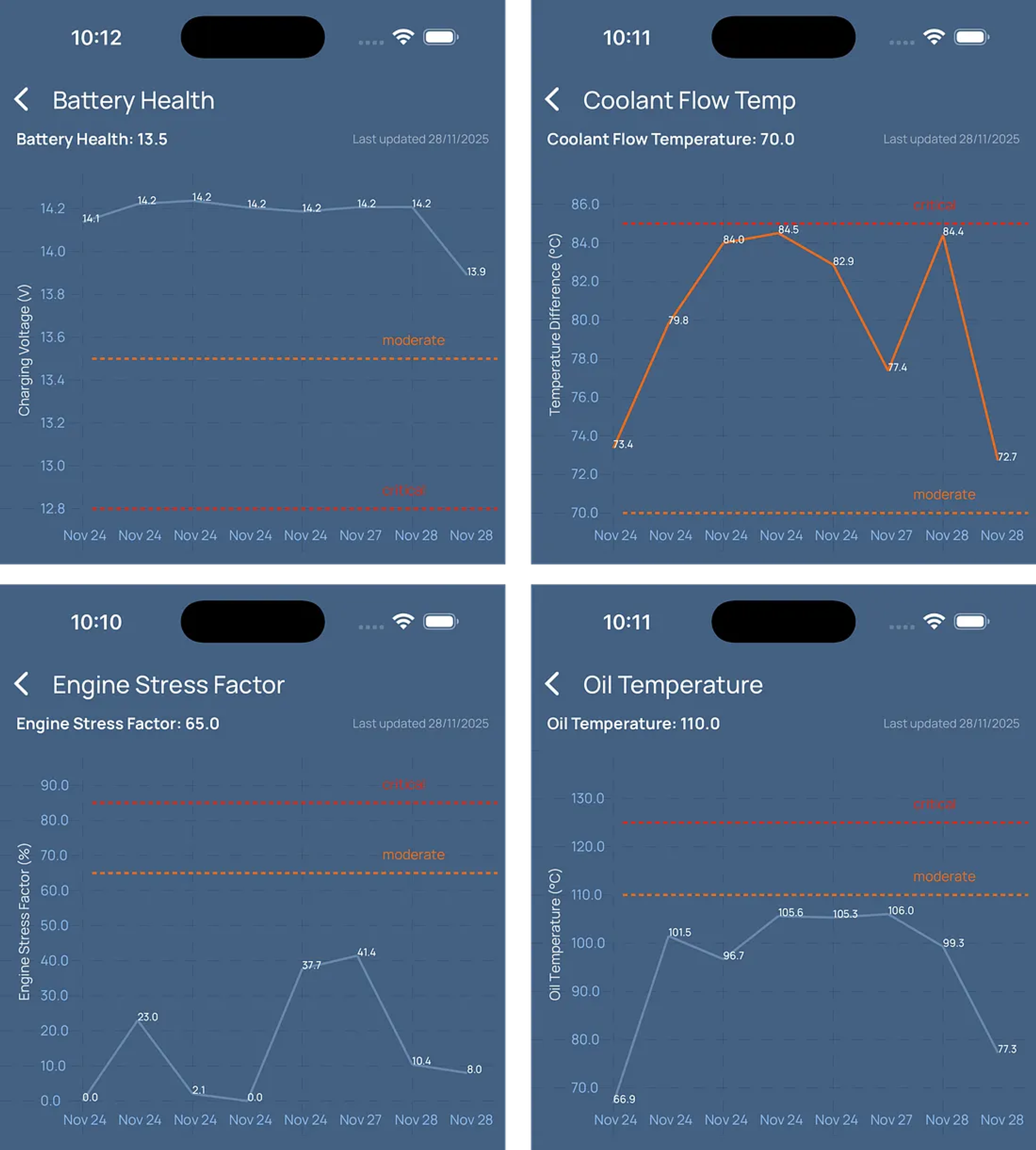
Notice how the dashed threshold lines sit exactly at their labeled values (12.8V, 70.0°C, 65.0%, etc.) and the trendline colors transition precisely at these boundaries — no more pixel drift or manual adjustments required.
Here are the threshold values from each chart:
Battery Health (top-left):
- Critical: 12.8V
- Moderate: 13.5V
Coolant Flow Temp (top-right):
- Moderate: 70.0°C
- Critical: 85.0°C
Engine Stress Factor (bottom-left):
- Moderate: 65.0%
- Critical: 80.0%
Oil Temperature (bottom-right):
- Moderate: 110.0°C
- Critical: 125.0°C
Summary
Our final implementation uses a hybrid approach:
Victory Native provides:
- Domain scaling and coordinate transformations
- Data-to-pixel mapping
- Automatic axis calculations
React Native Skia provides:
- Custom threshold line rendering
- Severity labels with exact positioning
- Fine-grained control over typography and styling
1API Response
2  ↓
3aggregateTimeSeriesData() → downsample + inject thresholds
4  ↓
5buildThresholdRanges() → normalize gt/gte/lt/lte into min/max
6  ↓
7Victory CartesianChart → compute all coordinates
8  ↓
9Skia rendering → draw guides, split segments, add labels
Technologies used:
victory-native~41.20.1@shopify/react-native-skia2.3.6react-native0.79.6expo53.0.22